 LingFrame AI
Guides
Halloween photo to AI video: prompts and a practical workflow
Give pumpkin lanterns, costume portraits and pet photos a little movement. Use a restrained action, plan the vertical crop and review details before publishing.
Web creation is available. Android availability is shown on the download page. Check the model and credits before generating.
Updated: · LingFrame AI
Halloween photo to AI video: prompts and a practical workflow
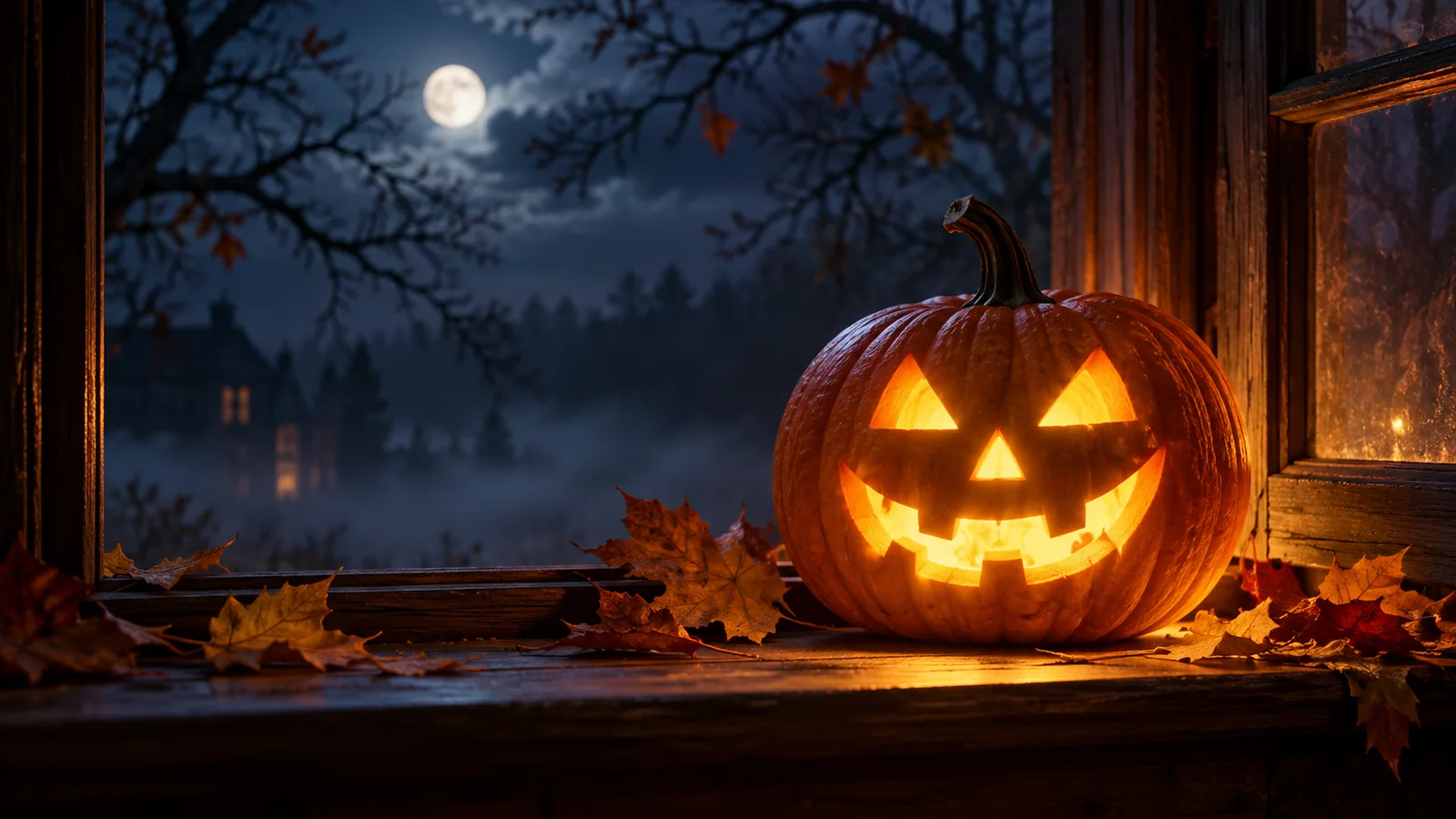
Use these ideas before Halloween for a preview or afterwards for a photo recap. Choose one scene per generated shot, then assemble multiple shots in an editor. The static pumpkin image is AI-generated artwork, not a generated video result.
From photo to video in four steps
Choose a clear photo
Use one recognizable subject, leave space around it and check the crop. Use only images you own or have permission to use.
Describe one action
Say what should move and how the camera should behave. Begin with a fixed camera and a small movement instead of several scene changes.
Choose settings and check credits
Select a supported aspect ratio, duration and quality. Options and costs vary by model; check the live quote before submitting.
Review the whole result
Watch the face, hands, lettering, edges and final second. If something drifts, change one variable at a time before trying again.
Prompts to adapt
These prompts and troubleshooting suggestions are adaptable creative examples. They have not been individually tested and do not guarantee an outcome or success rate.
Review before sharing
Face or makeup changes
Reduce head rotation and check whether the original face is clear. A constraint in a prompt cannot guarantee identity preservation.
Labels or carved edges drift
Remove camera movement and extra effects first. Add important words in an editor rather than relying on the model to redraw them.
The subject is cropped or the ending distorts
Check the source crop and leave room for motion. Try a shorter clip or split a complex action into separate shots.
Questions before you start
Is this the same as a photo slideshow?
No. A slideshow arranges existing images with transitions. Image-to-video generation creates new frames, which can also change details.
Is generation free?
Generation uses credits. Availability, pricing and any account offers depend on the current product rules; this guide does not promise a free allowance.
Can I publish the result immediately?
First check visual accuracy, image and likeness rights, music permissions and the destination platform’s preview. Add captions and sound in your chosen editor when needed.
About this guide
These prompts and troubleshooting suggestions are adaptable creative examples. They have not been individually tested and do not guarantee an outcome or success rate.
Updated: 2026-11-03
Keep exploring
How to turn a photo into an AI video
Upload a photo, describe the motion, choose settings, then generate and review. This guide covers the decisions that matter, reusable prompts and common failures.
Halloween photo to AI video: prompts and a practical workflow
Give pumpkin lanterns, costume portraits and pet photos a little movement. Use a restrained action, plan the vertical crop and review details before publishing.
Start creating
Web creation is available. Android availability is shown on the download page. Check the model and credits before generating.