 LingFrame AI
Choose the source photo
Look for even light across the face
A clear photo by a window or outdoors in shade gives the effect detail to work with. On a duplicate, fix a severe color cast first. A face lit by two different colored lights can produce uneven skin tones after restyling.
Leave room above the hair
Choose a portrait where your hair and shoulders have room to separate from the background. Check that hat trim, glasses and other features you want to keep are visible in the source.
Use the template
- Crop a copy in your photo editor if needed. Open the template workspace, check the accepted formats and size, and upload your prepared photo. Use the preview to confirm you selected the right file.
- Review the credits shown in the workspace. Select the creation button and sign in if prompted.
- Open the completed result, review it using the checks below, and save the version you want.
One winter image for a profile and a greeting
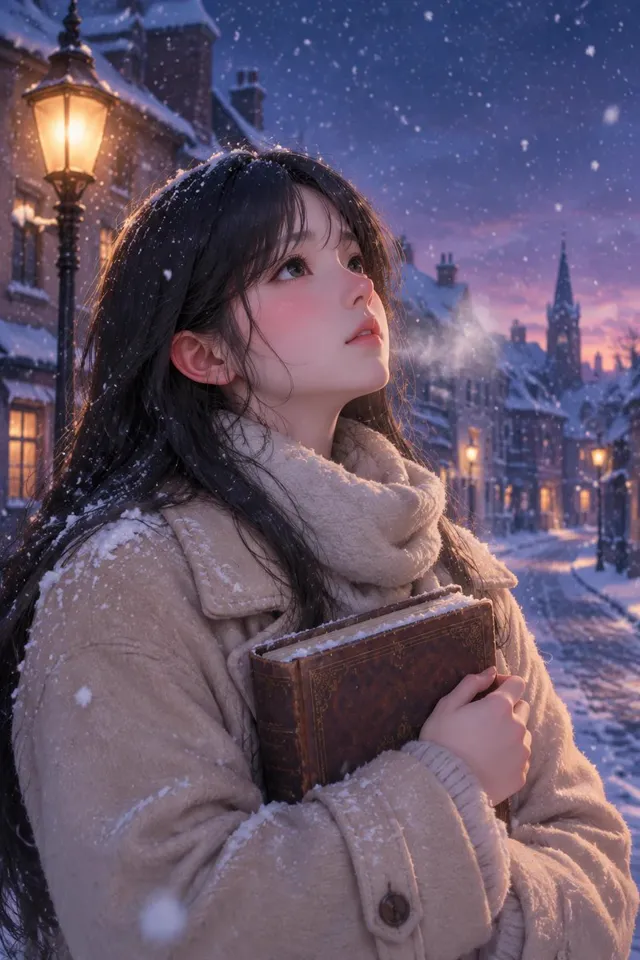
Use a head-and-shoulders image where the person looks toward the light. Generate the winter version and keep the full vertical frame for a greeting. Crop a separate square preview for an avatar, with the eyes well within the center so the platform’s circular crop keeps the face.
Inspect the template cover
The lantern, scarf and book help tell the winter story in the portrait frame. For the small avatar, move the crop toward the eyes and mouth before applying a circular mask.
Portrait frame
Square profile preview
Circular avatar preview
For your next attempt If the eyes land near the circle’s edge or snow obscures a pupil, move the crop toward the face or select a clearer result. Keep the wider frame for the seasonal post.
Review the result
- Keep the eyes clear
- At phone size, see whether snow or glare obscures the pupils. Zoom in around the hairline and check glasses for unexplained lines. Choose the version where the person remains recognizable.
- Compare cool and warm areas
- Snow can read blue in shadow. Look at teeth, eye whites and skin against a neutral background to catch strong casts. Inspect any greeting text after adding it in a separate editor.
Questions
Does this create a video with falling snow?
Snowy Twilight creates a still image. You can use the approved still as the first frame in a separate image-to-video project.
Do I need to start with a winter photo?
Use a suitable source portrait. Snowy Twilight supplies the winter look. Pick a source with clear edges and compatible clothing if you want a coherent result.