AI Clothes Changer
See how a new garment could look on your photo. Open the browser editor with a portrait and a clear photo of the garment, then describe the change.
Sign in to the web editor and check the credit cost before generating.
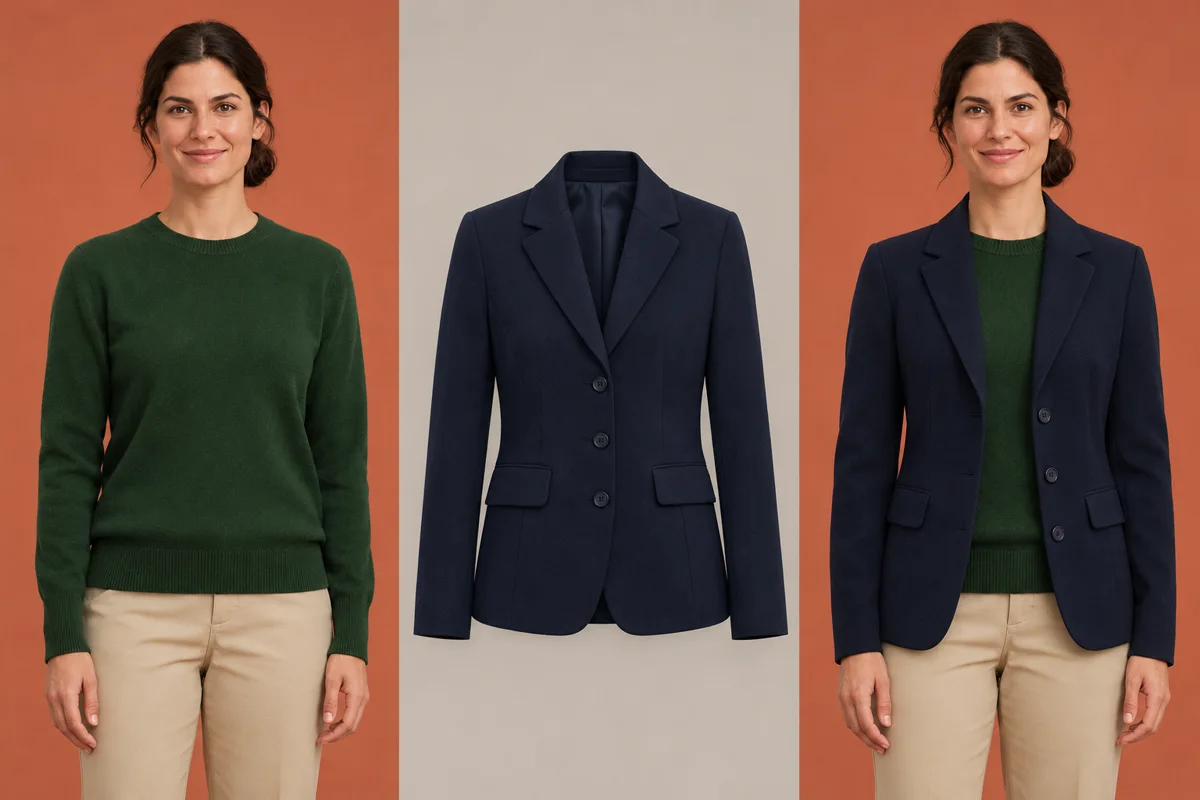
How to change clothes in a photo
Choose a portrait
Use a clear photo that shows the area you want to edit. For a jacket, keep both shoulders and wrists in frame.
Add a garment reference
Upload one clear piece of clothing in the second slot. A flat lay that shows the lapels and sleeves helps you compare details later.
Describe the change
Name the garment and the details you want to keep. Before saving the result, zoom in on the face, hands and clothing edges.
Preview a holiday party outfit
Try a navy blazer over a green sweater to plan a holiday portrait. Keep the photo and pose fixed so you can judge the lapels, sleeve length and what shows underneath.
Open AI Clothes ChangerQuestions before you start
What kind of garment photo should I use?
Start with a single garment laid flat or on a hanger. Keep the collar, hem and both sleeves in frame so the edit has a clear shape to follow.
How do I keep the face close to the original?
Start with a sharp, evenly lit portrait and change one garment at a time. Compare the eyes and jawline with the source before using the result.
Can I use the preview to pick a clothing size?
Use it to compare styling, colour and silhouette. Rely on the retailer’s size chart and your measurements for fit.
Can I edit a photo of someone else?
Use a portrait and garment image that you have permission to use. Get consent before editing a recognizable person’s photo.