Use GIF or MP4?
- GIF loop
- Choose the animated GIF option in Images 2.6 for a repeating sticker, mascot animation or storyboard.
- MP4 with new motion
- Start from a still image and generate a video when you want a longer shot, a controlled camera move or a clip you can trim in an editor.
- MP4 with the same GIF frames
- If your loop already looks right and a platform only accepts video, convert the GIF with a video editor to preserve its existing motion.
Set up the first frame
- Choose the final frame shape first
Plan a 9:16 crop for a vertical post or 16:9 for a wide clip. Preview the crop at phone size. Keep the product cap and base inside the frame and leave a small margin for the move.
- Save a clean still
Download a PNG or JPEG. For a product you sell, use a source image you have permission to use, and compare the still against the actual item. Keep prices, claims and logos available as separate artwork so you can place them precisely after generating.
- Open Image to Video
Use the button on this page to open the LingFrame editor. Upload the still into the photo slot, enter a short motion prompt, and check the available duration, ratio and credit cost before submitting.
A two-prompt product shot
This amber-bottle shot leaves space above the cap and below the base. The goal is one small change: a moving window reflection. Keep the camera fixed for the first clip, so a moving label or changing silhouette is easy to spot.
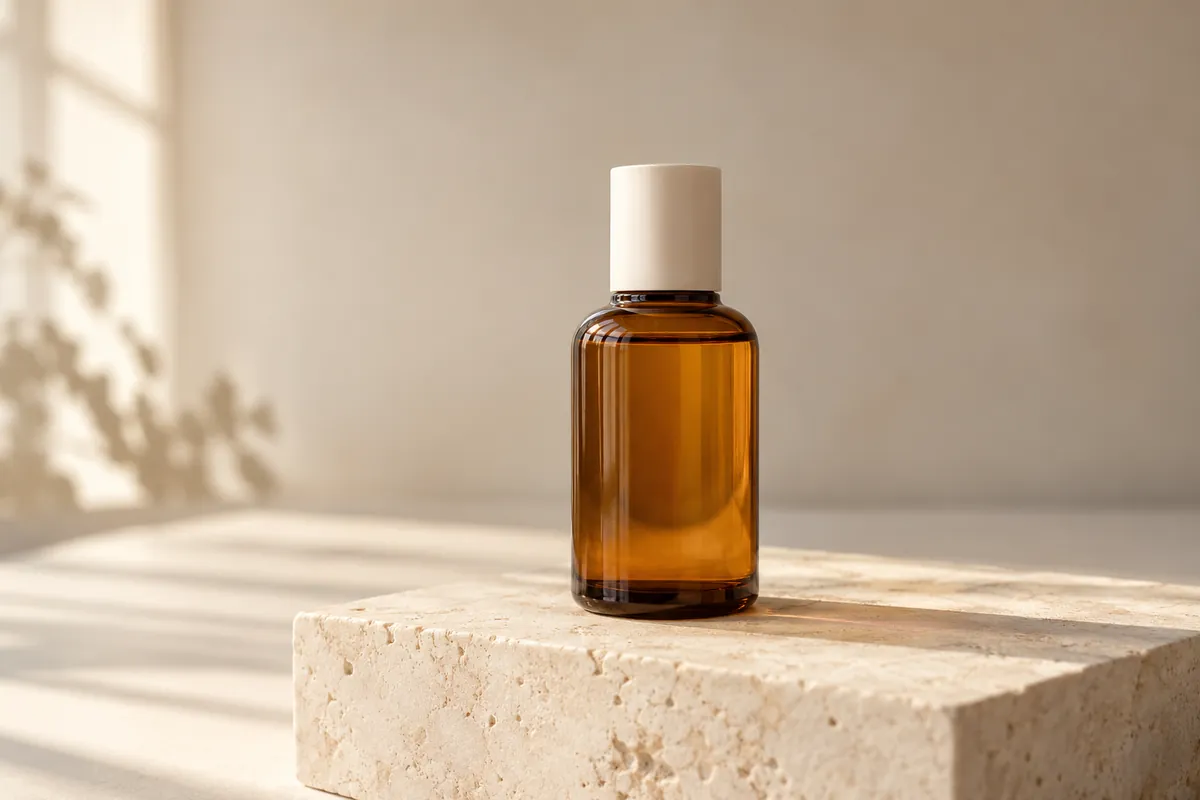
Still-image prompt for GPT Image 2.6
Motion prompt for LingFrame Image to Video
Adapt this prompt to the image you want to use.Upload a photo and try it
Check the clip before you export
- Pause at the start, midpoint and end. Check that the bottle outline, cap and base stay in the same places. Look for extra marks in the blank label area.
- If the bottle shape drifts, reduce the requested motion first. Keep the same still, ratio and model when comparing the two runs.
- Review the exported clip at its intended display size. Add final wording or label artwork in a video editor, then check placement on a phone.
Is this a GPT Image 2.6 integration?
The workflow uses an image you make with GPT Image 2.6, then imports the saved still into LingFrame’s separate video editor.
Can I start with an animated GIF?
Use the GIF as a timing reference. To generate new motion, export the frame you want to start from as a PNG or JPEG and upload that still.
OpenAI image output formats and prompting
GPT Image 2.6 Product Photo Prompts: 3 Shots for One Product
Turn a Product Photo into an AI Video: Motion and Label Checks